1. Upload your photo
or drag and drop here · JPG or PNG · up to 10 MB
2. Choose a shape
Upload a photo to see the preview
Everything happens in your browser. Your photo is never uploaded anywhere, so this works offline and keeps your photo private.
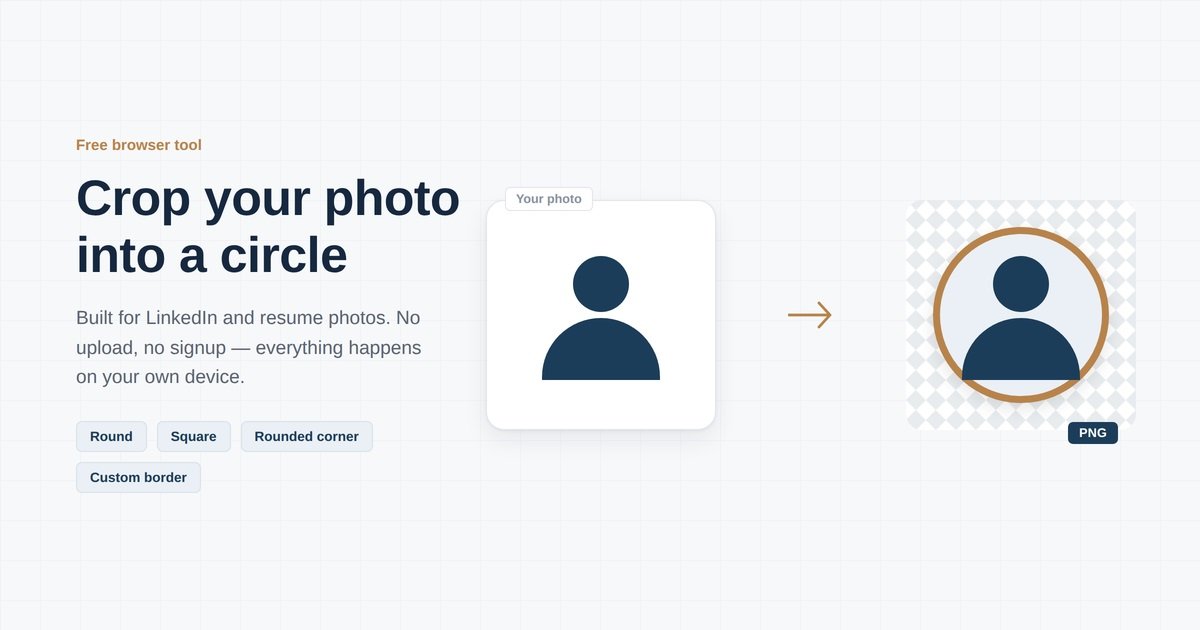
A clean, round profile photo is a small change with an outsized effect — on LinkedIn, on a company directory, or on a CV in a country where a photo is expected. This tool lets you upload a photo, crop it into a circle, square, or rounded square, add a border if you want one, and download it as a PNG. Nothing is uploaded to a server — the cropping happens in your browser.
Why Your LinkedIn Photo Matters More Than Your Resume Photo
If you’re applying for jobs in the US, UK, Canada, or Australia, you’ll usually leave the photo off your resume itself — anti-discrimination guidelines and applicant tracking systems both work against it. But recruiters still look you up on LinkedIn, and LinkedIn displays your photo as a circle. A profile with a photo gets far more views than one without, so this is the picture worth getting right.
Use the round shape for LinkedIn, keep your face centred, and leave a little space above your head so the crop doesn’t feel tight.
What If You Do Need a Photo on Your CV?
In much of Europe, the Middle East, and Asia, a photo on your CV is still standard practice, usually placed in a small square or rounded-square box in the header or sidebar of the document. If that’s your situation, use the Square or Rounded Corner option here instead of Round — it’s the shape most CV templates expect.
How to Use This Tool
- Upload a photo — click the box or drag your file in.
- Pick a shape: Round for LinkedIn and most social profiles, Square or Rounded Corner for CV headers.
- Drag the photo to reposition it, and use the zoom slider if you need to move in closer.
- Add a border and choose its colour and width, or leave it off.
- Click Download PNG. The background outside the shape is transparent, so it drops cleanly onto any document or page.
Getting a Good Result
The crop only works as well as the photo you start with. A few things make a real difference:
- Start with a photo where your face and shoulders are clearly visible — the tool can reposition and zoom, but it can’t add detail that isn’t there.
- A plain background crops better than a busy one, since the circle cuts close to your head.
- Use a recent photo. An outdated one creates a mismatch the moment someone meets you in person or on a call.
- Keep the final file small if you’re attaching it to an email signature or a CV, so it doesn’t bloat the document.
Frequently Asked Questions
Is this only for resumes and LinkedIn?
No. The same round or square crop works for WhatsApp, Instagram, Slack, Teams, or any profile picture — it’s just built with job seekers in mind.
Does my photo get uploaded anywhere?
No. The whole thing runs in your browser using HTML canvas. Your photo never leaves your device and isn’t stored or sent anywhere, even to us.
What size should I download?
The tool exports at a high resolution by default — more than enough for LinkedIn, which recommends at least 400×400px, or a printed CV photo. Resize it down if a specific platform asks for something smaller.
Join Our Telegram Group

Join Our WhatsApp Group