If you manage purchase orders in Excel, keeping track of delivery, invoices and payments can quickly become difficult. This Purchase Order Tracker Excel Template puts those details in one place, so you can see what was ordered, what has been received, which invoices are still missing and which payments are outstanding.
The template is designed for businesses, purchasing teams and office users who want a simple way to manage purchase orders without moving everything into complicated procurement software.
Download Purchase Order Tracker
File Type: .xlsx
Compatible with: All excel version
Macros: Not required
Purchase Order Tracker Excel Template
A purchase order is only one part of the purchasing process. After the PO is created, you still need to know whether the supplier delivered the material, whether the invoice has arrived and whether the invoice has been paid.
This spreadsheet is built around that complete process. You can enter the purchase order details, update received quantities, record invoice information and then track the payment. The workbook calculates several of the important figures automatically.
The final status also gives you a quick indication of what still needs attention. For example, an order can show Material Pending, Invoice Pending or Payment Pending instead of simply appearing as an open PO.
What Is Included
- Purchase order number and PO date
- Vendor and supplier details
- Department and buyer information
- Item or material details
- Item code or SKU
- Ordered quantity and unit
- Unit price and PO value
- Expected delivery date
- Actual delivery date
- Received quantity
- Pending quantity
- Material delivery status
- Invoice received status
- Invoice number and invoice date
- Invoice amount
- Payment due date
- Paid amount
- Outstanding balance
- Payment status
- Priority
- Days open and delay days
- Automatic final PO status
- Vendor summary
- Purchase order dashboard
Track Purchase Orders from Order to Payment
The main PO Tracker sheet is where you enter and update your purchase orders. Each row contains the information needed to follow an order through the purchasing process.

You can record the PO number, supplier, buyer, item, quantity, price and delivery dates. When the order changes, simply update the relevant fields rather than maintaining a separate list.
If one purchase order contains several items, you can use multiple rows with the same PO number to track the individual items and quantities.
Track Ordered, Received and Pending Quantity
One of the most useful parts of a PO tracker is knowing what is still outstanding. Enter the quantity ordered and update the received quantity as material arrives. The spreadsheet calculates the pending quantity for you.
For example, if 100 units were ordered and 70 have been received, the tracker shows 30 units as pending. Once the remaining quantity is received, the material status can move to completed.

Purchase Order Invoice Tracking
Receiving the material does not always mean the purchasing process is finished. In many businesses, the supplier invoice may arrive after the goods have been delivered.
The template has a separate section for invoice information, including:
- Invoice received
- Invoice number
- Invoice date
- Invoice amount
This makes it easy to identify purchase orders where the material has already arrived but the invoice is still missing.

Purchase Order Payment Tracking
Once an invoice is received, you can record the invoice amount, payment due date and amount paid. The workbook calculates the remaining balance and shows the payment status.
Payment status can be tracked as:
- Pending – no payment has been completed
- Partial – part of the invoice amount has been paid
- Paid – the invoice has been fully paid
This gives you a single place to follow both the purchasing and payment side of an order.
When Is a Purchase Order Completed?
The final status is designed to look at the complete order process rather than only the delivery.
A purchase order becomes Completed when:
- The required material has been fully received.
- The supplier invoice has been received.
- The invoice has been fully paid.
If any of these steps is still outstanding, the tracker shows the relevant pending status.
- Material Pending – the ordered quantity has not been fully received
- Invoice Pending – material is complete but the invoice is missing
- Payment Pending – material and invoice are complete but payment is outstanding
- Completed – material, invoice and payment are complete
Purchase Order Dashboard
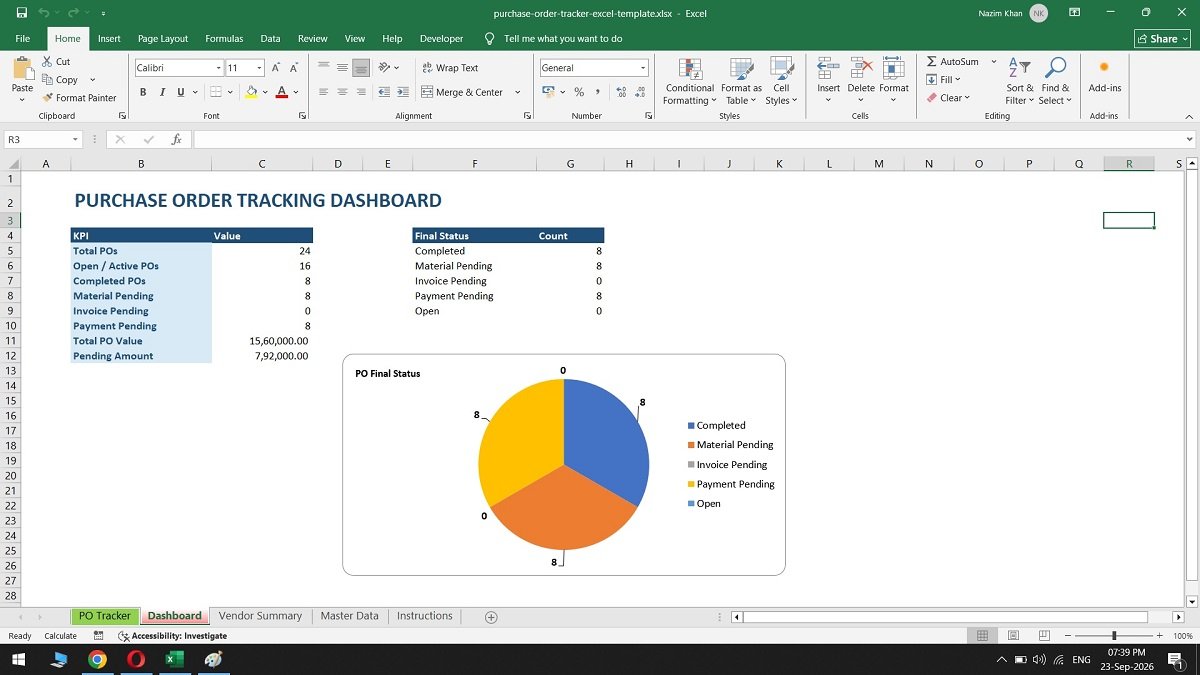
The dashboard gives you a quick view of your purchase orders without having to go through the entire tracker row by row.
It summarizes the number of POs, active orders, completed orders, material pending, invoice pending, payment pending, total PO value and pending amounts.
Vendor Summary
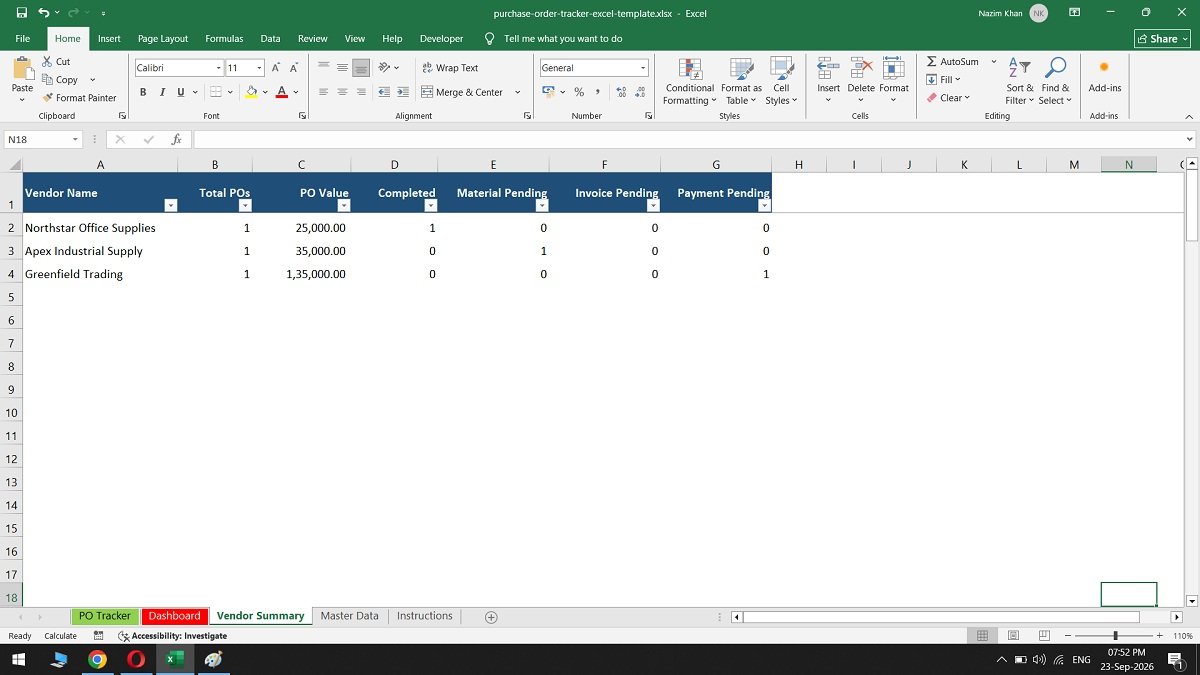
The Vendor Summary sheet provides a simple view of purchasing activity by supplier. It can help you see how many POs are associated with a vendor and which orders are still open.
The summary includes:
- Total purchase orders
- Total PO value
- Completed orders
- Material pending orders
- Invoice pending orders
- Payment pending orders
How to Use the Purchase Order Tracker
- Enter the PO details.
Add the PO number, date, supplier, department, buyer and item information. - Enter quantity and price.
Add the ordered quantity and unit price. The PO value is calculated automatically. - Update material received.
Enter the quantity received when the supplier delivers the material. - Update the invoice.
Mark the invoice as received and enter the invoice number, date and amount. - Record the payment.
Enter the amount paid and payment information when the invoice is settled. - Check the final status.
The workbook uses the information entered to show what is still pending and when the PO is completed.
Compatible Version
The template is provided as a standard .XLSX workbook and is designed for All Microsoft Excel 2007 and later versions, including Excel 2010, 2013, 2016, 2019, 2021, Excel 2024 and Microsoft 365.
No VBA macros are required for the main calculations and tracking features. You can replace the sample data with your own purchase orders and start using the workbook.
Who Is This Purchase Order Tracker For?
This spreadsheet can be useful for anyone who manages regular business purchases and wants to keep order, delivery, invoice and payment information together.
- Small businesses
- Purchasing departments
- Procurement teams
- Operations teams
- Office administrators
- Inventory teams
- Finance teams
- Retail businesses
- Wholesale businesses
- Manufacturing businesses
- Contractors
- Business owners using Excel
Purchase Order Tracker vs. Purchase Order Form
A purchase order form is normally used to create an individual PO that can be sent to a supplier. A purchase order tracker is used to monitor multiple orders after they have been created.
This template is primarily a tracking spreadsheet. It is designed to help you monitor orders, deliveries, invoices and payments rather than replace a formal purchase order document or procurement system.
Download the Free Purchase Order Tracker Excel Template
If you want a simple Excel spreadsheet for keeping track of purchase orders, deliveries, invoices and payments, download the template below and customize it for your business.
Download Purchase Order Tracker
The workbook is editable, so you can replace the sample information with your own vendors, items, purchase orders and payment details.
Frequently Asked Questions
What is a purchase order tracker?
A purchase order tracker is a spreadsheet used to monitor purchase orders after they are created. It can keep track of suppliers, items, quantities, delivery dates, invoices, payments and outstanding orders.
Is this a free Purchase Order Tracker Excel Template?
Yes. The template is available as a free XLSX download and can be edited for your own purchasing records.
Does the PO tracker work with Excel 2024?
Yes. The workbook is designed for Microsoft Excel 2024 and all older versions.
Can I track partial deliveries?
Yes. Enter the ordered quantity and update the received quantity as deliveries arrive. The remaining quantity is calculated automatically.
Can I track purchase order invoices?
Yes. The workbook includes fields for invoice received status, invoice number, invoice date and invoice amount.
Can I track payments against a purchase order?
Yes. You can record the invoice amount, payment due date, paid amount and remaining balance.
Can one PO contain multiple items?
Yes. You can use multiple rows with the same PO number when a purchase order contains different items.
How does the final PO status work?
The final status considers material receipt, invoice receipt and payment. When all three are complete, the PO is shown as Completed.
Does this Excel template require VBA?
No. The main tracking calculations do not require VBA macros.
Can I customize the template?
Yes. You can replace the sample data and adapt the workbook to your own purchasing process.
Join Our Telegram Group

Join Our WhatsApp Group