
Signing PDFs has become a normal part of everyday work. Whether it’s a contract, an HR form, a freelance agreement, or a client document, chances are you’ve had to sign a PDF at some point.
Most people immediately search for an online PDF signing tool, upload their file, add a signature, and download it again. It feels quick and easy at first, but there’s one thing many of you don’t think about: Your documents are being uploaded to third-party servers.
That may not matter for casual files, but for contracts, IDs, financial records, or confidential documents, many people prefer a safer offline method instead.
The good thing is, you can easily sign PDF files offline directly on your computer. In this guide, we’ll go through different ways to sign PDFs, explain the difference between electronic and digital signatures, and show how tools like Systweak PDF Editor make the process simple and secure.
Why People Prefer Signing PDFs Offline
There are a few reasons why offline PDF signing is becoming more popular.
Better Privacy:
Your documents stay on your own computer instead of being uploaded online.
This is important for:
- Business contracts
- Personal IDs
- Legal documents
- Financial records
Works Without Internet:
Offline tools continue working even when your internet connection is slow or unavailable.
More Control Over Your Files:
Offline PDF editors often provide better control over:
- Signature placement
- Security settings
- Document permissions
- File management
No Upload or File Size Limits:
Many free online tools restrict:
- Number of files
- File size
- Daily usage
Offline tools avoid those limitations.
Electronic Signature vs Digital Signature
A lot of people confuse these two, so let’s make it simple.
| Electronic Signature | Digital Signature |
| Typing your name
Drawing your signature Uploading a signature image |
Digital certificates
Encryption Identity verification |
Electronic Signature:
An electronic signature is the simpler type of signature. The purpose is mainly convenience and quick approvals.
People usually use electronic signatures for:
- Office forms
- Freelance agreements
- Basic contracts
- Everyday PDF signing
Digital Signature:
A digital signature is more secure and advanced. It helps verify:
- Who signed the file
- Whether the document was changed after signing
Digital signatures are commonly used for:
- Legal documents
- Financial paperwork
- Government forms
- Sensitive business contracts
Ways to Sign PDF Offline
Use Systweak PDF Editor (Best for Simple & Secure Offline Signing)
Systweak PDF Editor is a beginner-friendly offline PDF editor that focuses on making PDF tasks simple and practical for everyday users.
It allows users to:
- Sign PDF files offline
- Add electronic signatures
- Digitally sign PDFs
- Add typed, drawn, or image-based signatures
- Protect documents with security settings
One thing that makes Systweak PDF Editor stand out is how simple the interface feels. And you can add both, Electronic and Digital signatures in just a few seconds with any complicated methods.
Best For:
- Beginners
- Freelancers
- Office users
- Small businesses
- Everyday PDF signing
To add Electronic Signature to PDF
This is the easiest and most commonly used method.
Step 1: Open the PDF
Launch Systweak PDF Editor and open the document you want to sign.
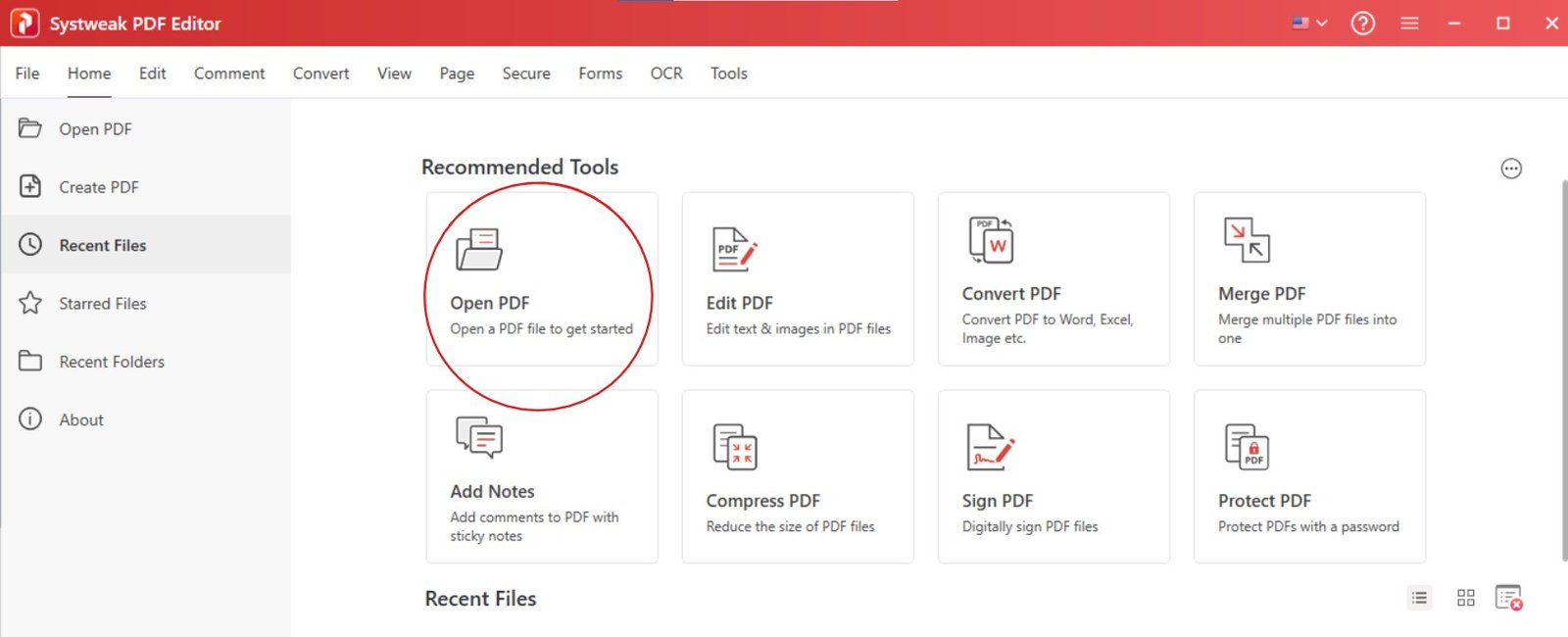
Step 2: Go to the Edit Tab
Click on the Sign PDF option.

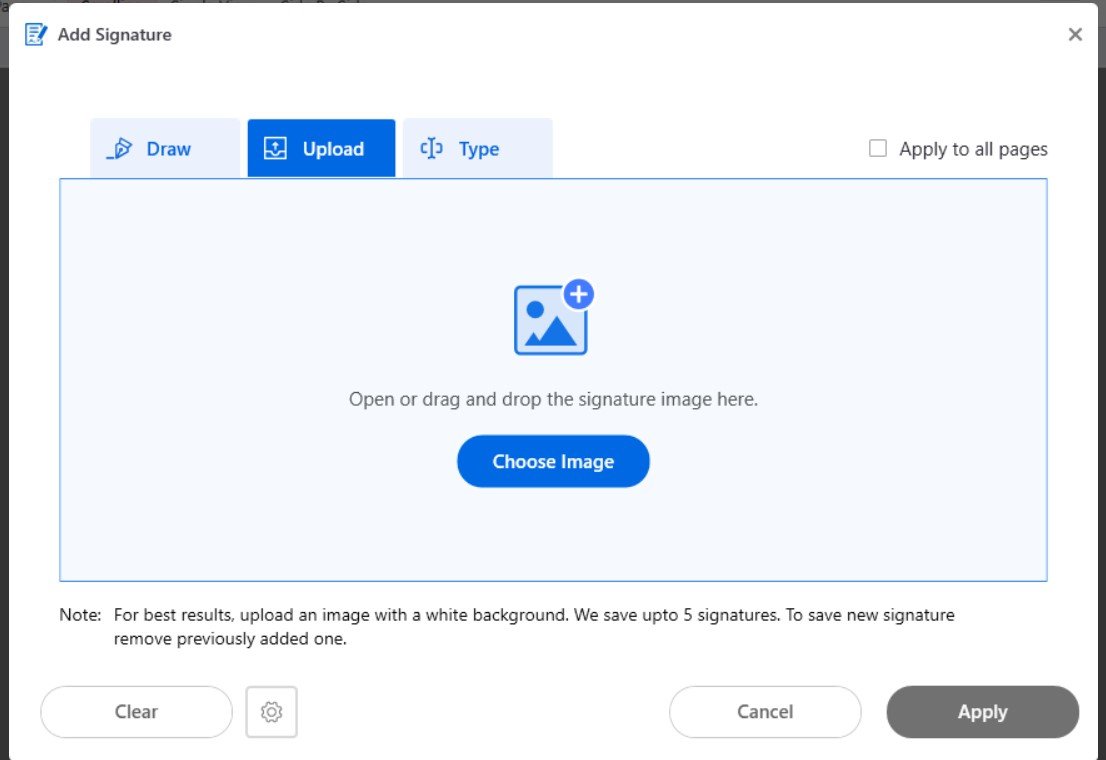
Step 3: Create Your Signature
You can:
- Type your name
- Draw your signature
- Upload a signature image
Choose whichever feels comfortable.
Step 4: Place the Signature
Drag and place the signature where you want to in the PDF.
Step 5: Save the Document
Once you have placed your signature, save your PDF.
File > Save As.
That’s it. You’ve successfully learned how to e-sign a PDF offline.
To Digitally Sign PDF Documents
For stronger security and verification prefer using digital signature.
Step 1: Open the PDF
Open your document in the Systweak PDF Editor.
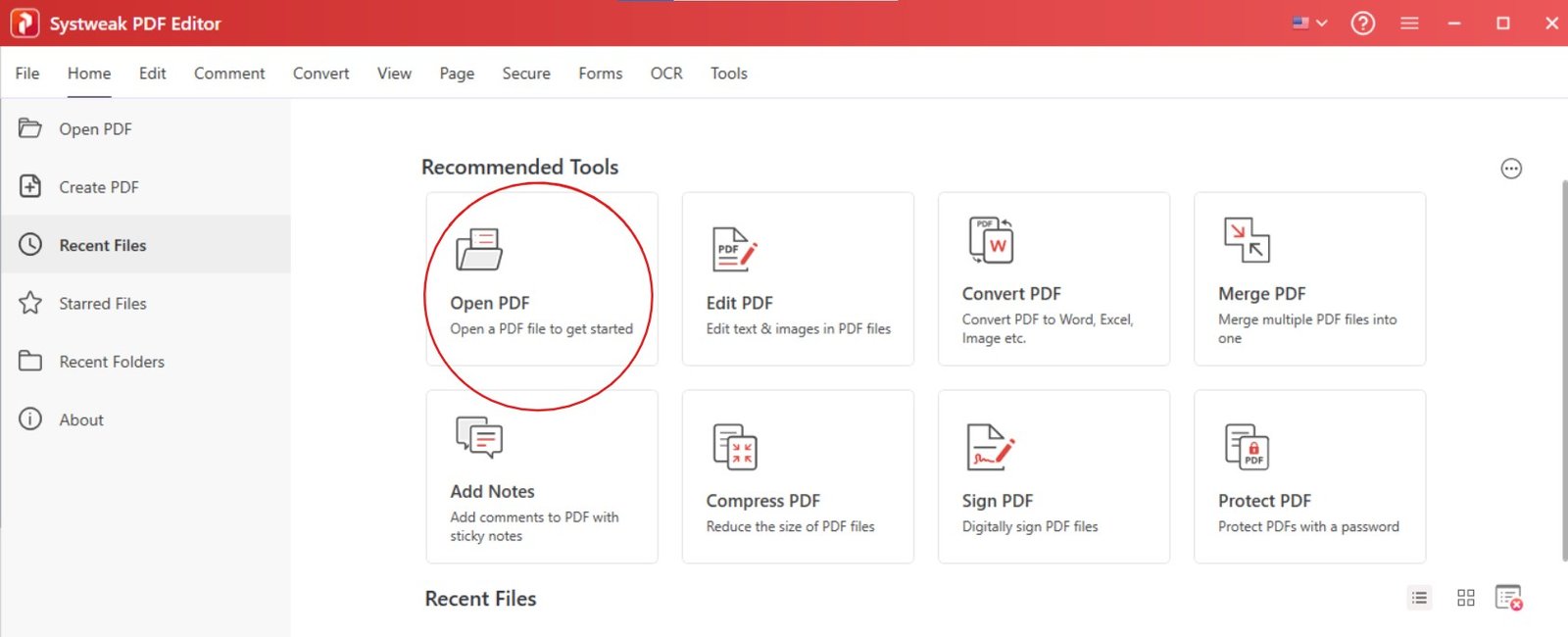
Step 2: Go to Secure Tab
Navigate to the Digital Sign option.

Then drag your mouse to mark where you want to add your signature in the PDF.
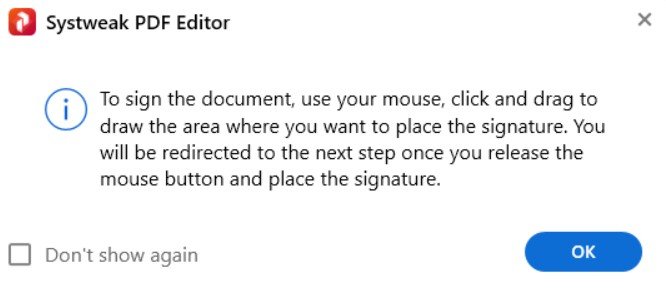
Step 3: Fill all the Details
Fill all the needed information to create your digital signature.
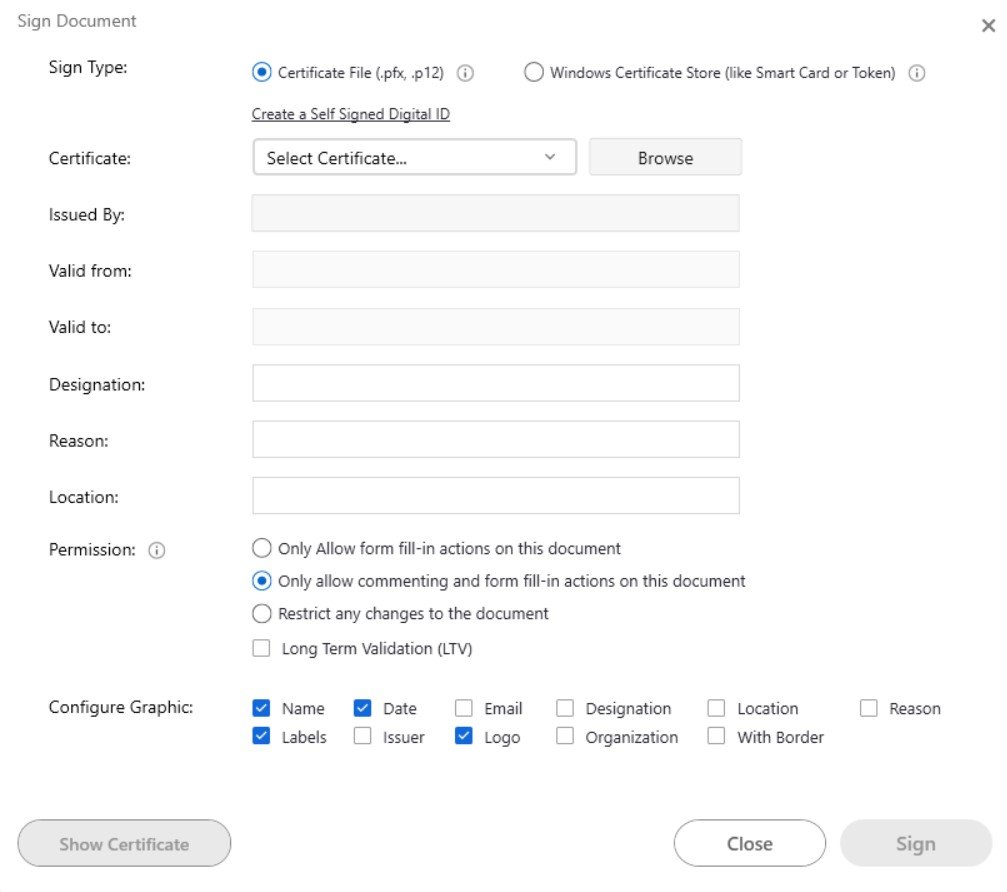
Step 4: Sign and Save
Apply the digital signature and save the file. This way you’ll not just sign your PDF but also add a layer of protection.
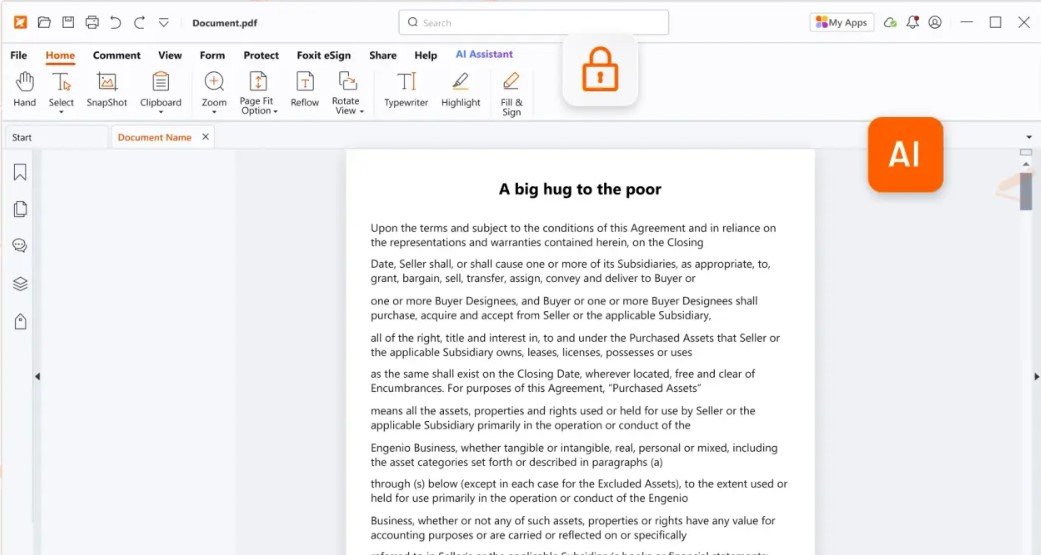
Use Foxit PDF Editor:
Foxit PDF Editor is a well-known PDF software that offers advanced PDF editing and signing features.
It supports:
- Electronic signatures
- Digital signatures
- Document permissions
- PDF security settings
Foxit is commonly used in businesses because it includes many professional tools beyond signing. However, because of the large number of features, some users may find the interface slightly more complex, especially if they only need basic PDF signing.
It’s a powerful tool, but it feels more suited for users who regularly work with advanced PDF workflows.
Best For
- Corporate users
- Teams
- Advanced PDF management
- Business workflows
Use PDF-XChange Editor:
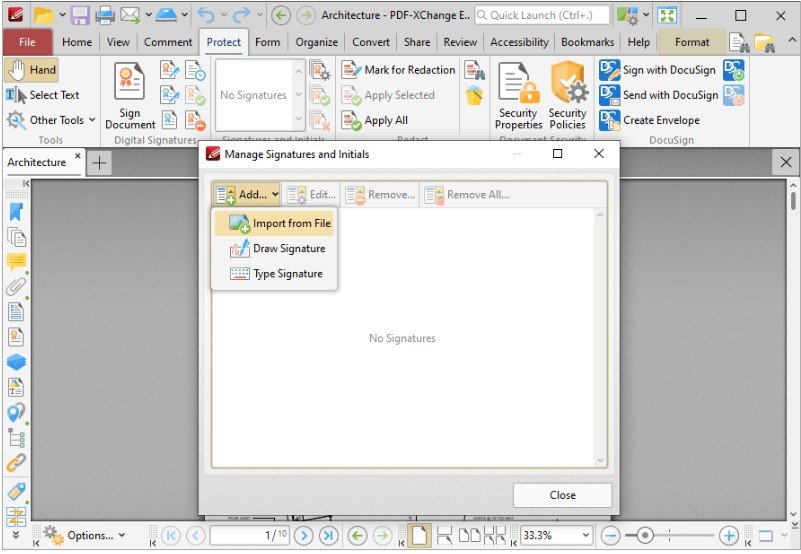
PDF-XChange Editor is another offline PDF editor that supports signing and annotating PDF documents.
It offers:
- Signature support
- PDF editing tools
- Form handling
- Annotation features
This tool is popular among users who like customization and detailed controls. It provides many advanced options, but the interface can feel technical for beginners who only want to quickly sign a PDF.
Still, it’s a capable option for users who are comfortable exploring software settings and advanced features.
Best For
- Technical users
- Advanced PDF editing
- Users who prefer detailed controls
Why Signing a PDF Offline Is Better for Sensitive Files
A lot of people search for ways to sign PDF free online, but they do not realize that they are risking their information by uploading it on some random external servers.
That may not be ideal for:
- Contracts
- IDs
- Financial records
- Confidential business files
Offline PDF signing is safer because:
- Files stay on your device
- No unnecessary uploads
- Better privacy control
- Faster workflow for regular use
Signing a PDF offline is not a big deal. You can very easily sign a PDF with either electronic signature or digital signature. Just know if it should be a secure signature or just that approval one and add as per your need.
And always go for a dedicated offline PDF editor that provides better privacy, control, and security for regular document handling.
With tools like Systweak PDF Editor, you can:
- Sign PDF files offline
- Add electronic signatures
- Digitally sign PDFs
- Keep your documents private and secure
And honestly, once you stop depending on random online tools for sensitive documents, PDF signing becomes much less stressful.
 Join Our WhatsApp Group


Nazim Khan (Author) 📞 +91 9536250020
[MBA in Finance]
Nazim Khan is an expert in Microsoft Excel. He teaches people how to use it better. He has been doing this for more than ten years. He is running this website (TechGuruPlus.com) and a YouTube channel called "Business Excel" since 2016. He shares useful tips from his own experiences to help others improve their Excel skills and careers.


