नमस्कार! दोस्तों आज हम एक ऐसे tdl फाइल के बारे में चर्चा करेंगे ,जिसकी मदद से अपने Tally Prime में आप Party Entry करते समय अपनी Sales Voucher में Party GST & Mobile Number देख सकते हैं यह आप को Error Free चालान में मदद करेगा तो चलिए देखते हैं कि हम कैसे उपयोग कर सकते हैं इस tdl फ़ाइल का tally prime में ?
TDL Code For Adding GST And Mobile Number in Sale Voucher
[#Line:EI Consignee]
Field:MobileLWT
Left Fields:MobileLWD,GSTLWD
Border:Thin Bottom

[Field:MobileLWT]
use:Medium Prompt
Set As:"MoNo/GST"

[Field:MobileLWD]
Use:Name field
Set As:$LedgerMobile:Ledger:#EIConsignee
Color:Blue
skip:Yes

[Field:GSTLWD]
Use:Name field
Set As:$PartyGSTIN:Ledger:#EIConsignee
Color:Blue
skip:Yes
Step 2 : अब above code को Save करने के बाद Tally Prime पर TDL File अपलोड करें ( और अगर आपको Tally Prime पर TDL File upload करने का तरीका नहीं पता है तो नीचे दिए गए Link पर Click करें जो आपको Tally Prime पर TDL File अपलोड करने के लिए Guide करेगा )
Step 3: Now from Gateway of Tally > Go to Voucher > press Sale Voucher button or press F8 for sale voucher, then select your party to whom you want to sell, just after selecting the party name you can see mobile no. and GST no. is automatically pop up as shown in below image
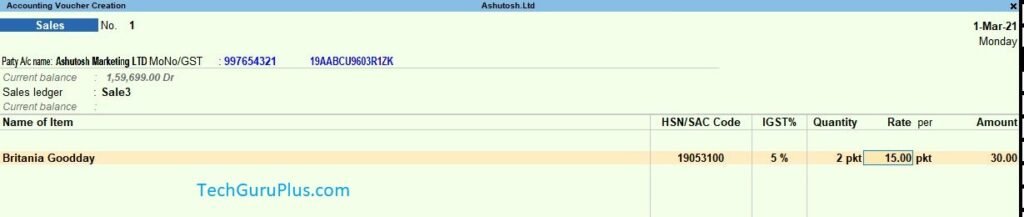
धन्यवाद दोस्तों! अगर आपको ये आर्टिक्ल पसंद आया हैं तो इसको सोशल मीडिया पर अपने दोस्तो के साथ जरूर से शेयर कीजिए, जिससे उनको भी ये जानकारी प्राप्त हो सके।
Download Button पर Click करके फ़ाइल डाउनलोड करें
Join Our Telegram Group

Join Our WhatsApp Group