The ability to access data across devices is a necessity. We’ve all faced the frustration of “file too large” email errors or the realization that a crucial document is sitting on an office PC miles away. While cloud storage is a common workaround, it often feels like an unnecessary middleman when you just need a direct connection to remote desktop transfer files instantly.
This is where remote desktop file transfer technology changes the game. Specifically, AnyViewer has emerged as a professional, high-speed file transfer solution that turns complex data migration into a simple “point-and-click” task.
Why Choose AnyViewer for Remote Desktop File Transfer?
AnyViewer isn’t just a free remote desktop software; it is a precision-engineered utility designed to eliminate the friction of moving data. As a robust remote desktop with file transfer capabilities, here is why it stands out as a market-leading software:
- High-Speed Performance: Time is your most valuable asset. AnyViewer delivers impressive transfer speeds of up to 10 MB/s. By utilizing 5 simultaneous transfer threads, it functions like a multi-lane highway, ensuring your data moves significantly faster than standard RDP tools.
- Massive Capacity Without Limits: Forget the restrictive caps of free cloud tiers. AnyViewer allows you to remote desktop transfer files as large as 2TB. Whether you are moving one massive 4K video project or ten thousand small internal documents, this software handles the load without breaking a sweat.
- Seamless Cross-Platform Sharing: True remote desktop file transfer should break down barriers. AnyViewer allows you to move files between various Windows versions, connect with Macs, or even grab a document from your PC using an Android or iOS device while you’re on the move.
- Enterprise-Grade Security: Moving private data shouldn’t feel like a gamble. AnyViewer protects every byte with ECC (Elliptic Curve Cryptography) encryption. This ensures that your files stay inside a “digital armored truck” from the moment you hit send until they arrive at their destination.
How to Perform a Remote Desktop File Transfer (Step-by-Step)
Setting up a secure pipeline to remote desktop transfer files between your devices is a straightforward process. Here is how to get started with a remote desktop with file transfer setup:
File Transfer Between Two Computers (PC to PC)
Step 1. Download and install AnyViewer on both the local (source) and remote (destination) PCs.
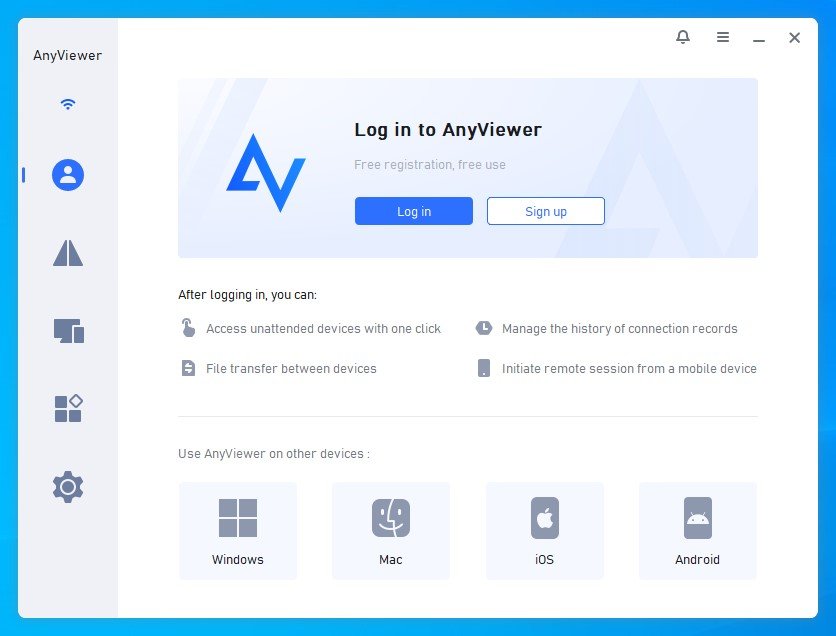
Step 2. Create a free account and log in on both devices. This automatically syncs them to your “Device” list for one-click access.
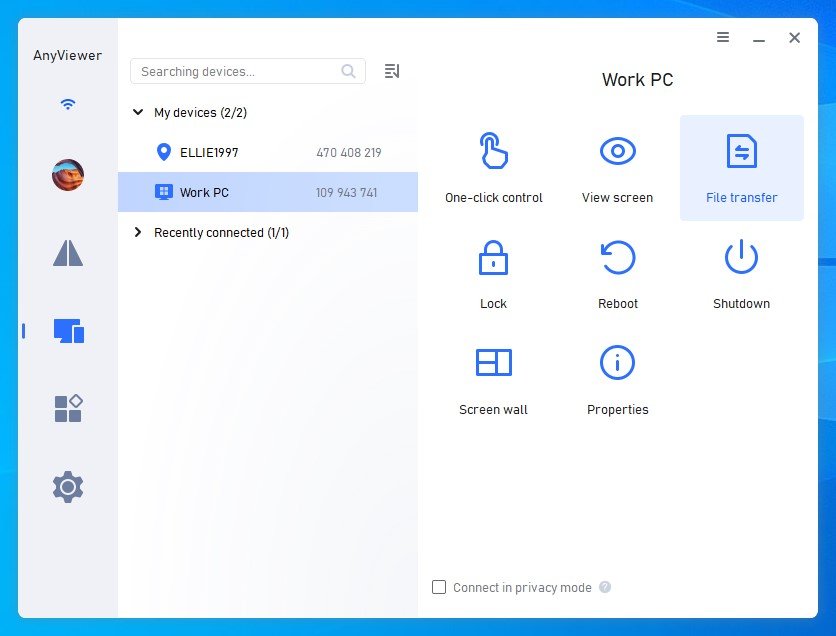
Step 3. Go to the Device tab, select your target PC, and click File Transfer.
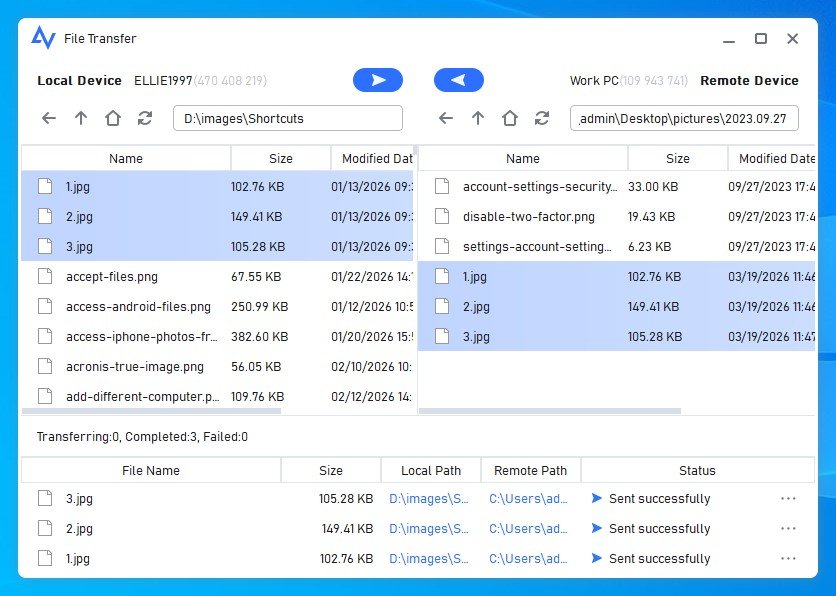
Step 4. You can now transfer files using a convenient split-pane interface.
File Transfer Between Desktop and Mobile
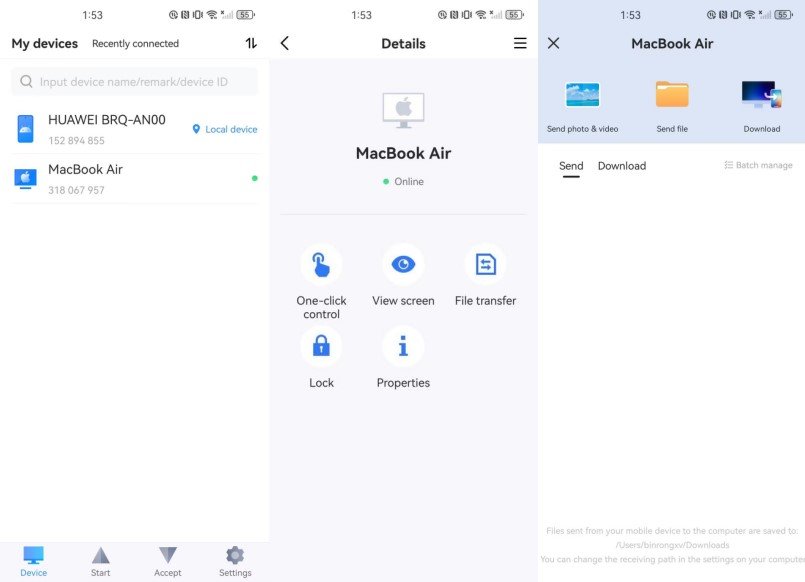
Step 1. Install AnyViewer on your Windows PC/Mac and the AnyViewer App from the Google Play Store or App Store.
Step 2. Log into the same account on both your PC/Mac and mobile device.
Step 3. On your phone, go to the Device tab, select your PC/Mac, and choose File Transfer.
- To PC/Mac: Tap “Send photos & videos” or “Send file.”
- To Mobile: Tap “Download” to pull files from your PC/Mac to your phone instantly.
Beyond File Transfer: A Complete Remote Access Suite
While its remote desktop file transfer capabilities are world-class, AnyViewer offers a full ecosystem of tools to boost your productivity:
- Unattended Remote Access: Access your office computer anytime, even if no one is there to accept the request.
- Mobile Screen Mirroring: Easily share your phone screen to your PC. This is perfect for showing mobile apps, giving presentations, or viewing phone content on a much larger monitor.
- Multi-Monitor Support: Navigate through multiple screens on the remote side to find exactly what you need.
- Session Recording: Record your remote work with one click, perfect for creating tutorials or keeping a log of IT fixes.
AnyViewer offers a fast and secure alternative to slow cloud uploads and limited storage tools. By choosing a high-performance remote desktop with file transfer solution, you can move large files across Windows, Mac, and mobile devices with ease. Whether you need to remote desktop transfer files for a quick task or manage complex data across an enterprise, AnyViewer provides the speed and security you need to stay productive.
Join Our Telegram Group

Join Our WhatsApp Group