Upgrading or replacing your hard drive in Windows 11 can seem daunting. You don’t want to lose your system settings, installed programs, or important files. This is where disk cloning software for Windows 11 comes in. It allows you to create an exact copy of your drive and migrate everything safely to a new disk—saving time, effort, and headaches.
Recommended Disk Cloning Software for Windows 11

When it comes to migrating your Windows 11 system to a new drive, AOMEI Cloner consistently stands out as one of the most reliable tools available. Whether you’re upgrading to a faster SSD, replacing an aging hard drive, or preparing a backup for disaster recovery, this software makes the process smooth.
Full System Migration
It creates a precise, fully bootable copy of your entire Windows 11 system, replicating everything from system files and installed applications to personal settings, documents, and media. This ensures that after migration, your new drive behaves exactly like the original.
Smart and SectorbySector Cloning
You can choose between two distinct cloning methods. Intelligent cloning efficiently copies only the used space on your drive, making the process quicker and creating a more compact duplicate. Sector-by-sector cloning replicates every single sector, ideal for creating an exact archival backup or when drives are identical in size.
SSD Optimization
The software ensures peak performance by automatically aligning partitions for solid-state drives (SSDs). This essential step prevents misalignment, which can severely degrade SSD speed and lifespan. By handling it seamlessly in the background, the tool helps you unlock the full potential of your modern hardware effortlessly.
UserFriendly Design
Designed with accessibility in mind, the software allows even first-time users to complete a clone in just a few simple clicks. Its intuitive, wizard-style interface clearly guides you through each critical step. No technical expertise is required.
Support for All Common Drives
AOMEI Cloner works with HDDs, SATA SSDs, NVMe drives, and external USB disks. It supports both GPT and MBR partition styles, ensuring compatibility with Windows 11 boot configurations.
Step-by-Step Guide to Clone a Hard Drive on Windows 11
Cloning a hard drive in Windows 11 is easier than most people think, especially when using AOMEI Cloner. Follow these steps to safely migrate your system or data to a new disk without losing any files or settings.
Step 1: Prepare Your Drives
Before starting, connect the new disk to your PC. This can be an internal SATA/SSD, an NVMe drive, or an external USB drive. Make sure the target disk has enough free space to hold all data from the source drive.
Note: Ensure you back up all data from the target drive. The cloning procedure will completely overwrite and erase its existing contents.
Step 2: Launch Disk Clone Software
Open specialized disk clone software – AOMEI Cloner. Click the Clone tab and choose Disk Clone.
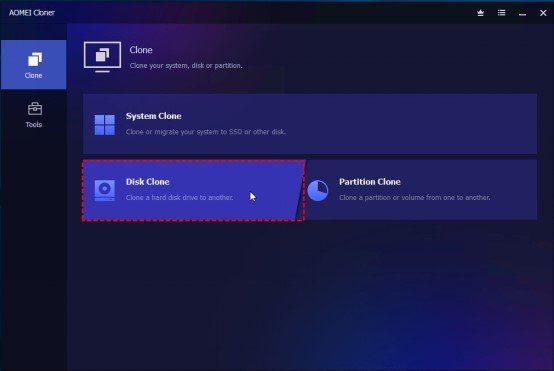
Step 3: Select the Source Disk
Choose the hard drive you want to clone. This is usually your current Windows 11 system drive or the disk containing important data.
Step 4: Select the Target Disk
Pick the disk where the cloned data will be stored. Ensure it’s the correct drive, as all existing data on the target will be overwritten.
Step 5: Configure Cloning Options
- Edit Partitions: Adjusts the partition style (MBR/GPT) and partition size of the destination disk.
- SSD Alignment: Uses 4K partition alignment to optimize SSD performance.
- Sector By Sector Clone: Copies every sector, creating an exact replica of the source disk, including empty space.
Step 6: Start the Cloning Process
Click Start Clone. Depending on your disk size and connection type, the process may take some time. Avoid interrupting the operation.
Step 7: Boot from the Cloned Disk
After cloning, replace the old drive or adjust boot order in BIOS/UEFI to boot from the new disk. Windows 11 and all programs will launch exactly as before, with no additional setup required.
Cloning a hard drive in Windows 11 is a fast, reliable way to upgrade your storage, replace a failing disk, or create a full backup without losing data. AOMEI Cloner makes the process simple, offering bootable clones, SSD optimization, and both intelligent and sector-by-sector options. By following the step-by-step guide, you can ensure your new drive works perfectly.
Join Our Telegram Group

Join Our WhatsApp Group