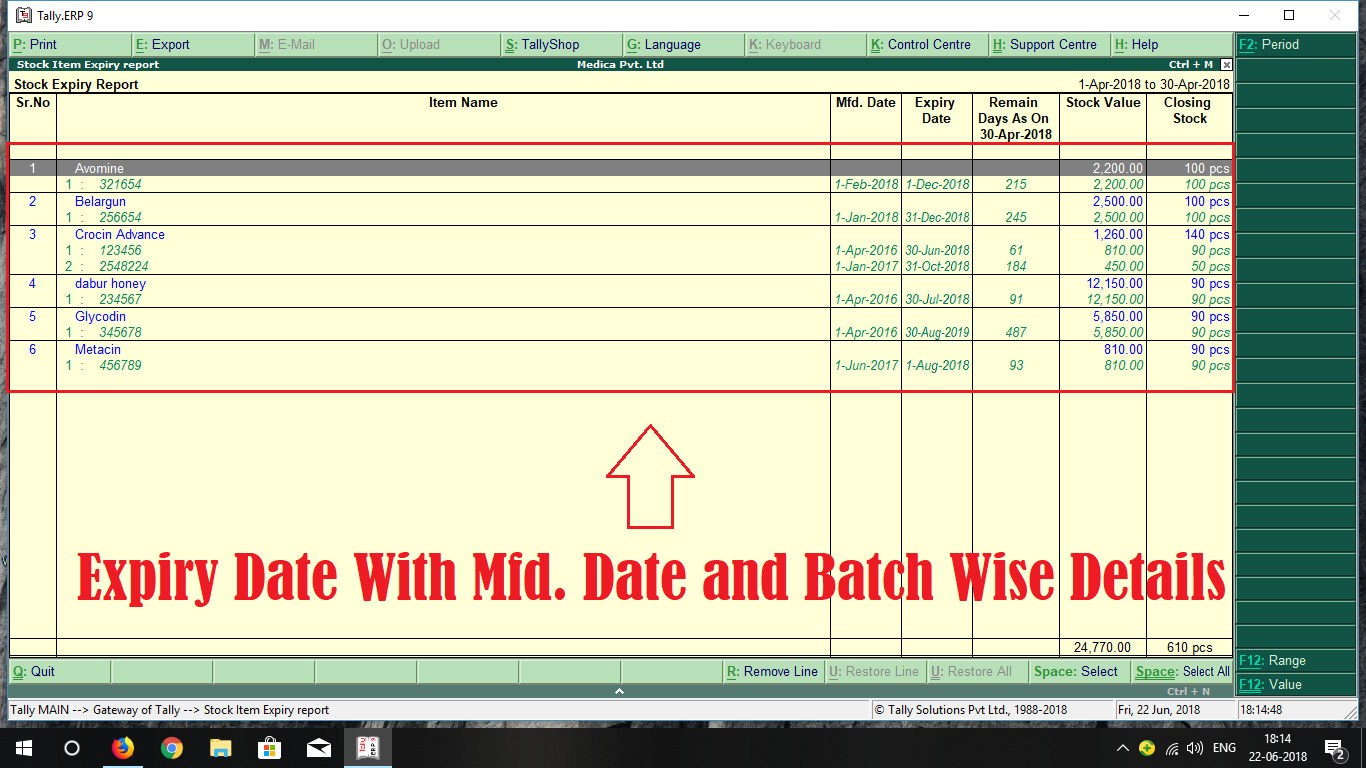
Here is the Preview of this TDL file
How to Install the TDL File in Tally
Step 1. Go to Gateway of Tally.
Step 2. Then Press Ctrl+Alt+T button
Step 3. Now Press F4 Button or Click on “Manage Local TDL” button
Step 4. Now do “Yes” to “Loan TDL Files on Startup” option
Step 5. Now in the next line “List of TDL Files to preload on Startup” Enter the TDL File Path or Location Like “E:File.tdl”
Step 6. Now save the settings
Your TDL File is ready to use.
Watch this Video to Learn

Join Our Telegram Group

Join Our WhatsApp Group


WANT TO STOCK ITEM EXPIRY REPORT TDL FILE
hi
i have download stock expiry TDL. all installed well. but in GOT there were not showed Expiry Reort. Can you guide me. plz send me mail. if possible. etsannabusiness@gmail.com.
Thank you.
need stock item expiry maintain tdl
Dear Sir,
In this TDL can we add a date of purchase of a inventory batch wise
I want to have this addon “Stock Item Expiry Report”. Please let me know how to get it.