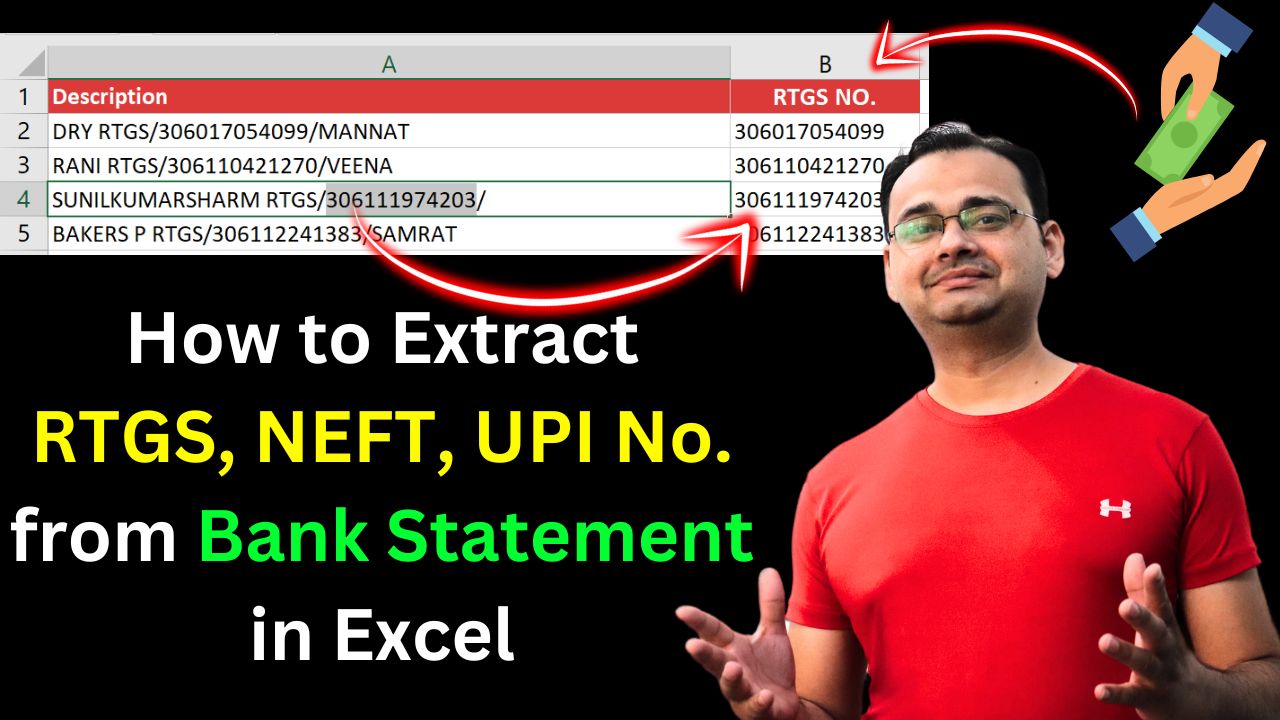
How to Extract RTGS/UPI/NEFT Number in Excel Using MID and FIND
If you have a value like the following in your Excel cell:
DRY RTGS/306017054099/MANNATYou can extract the RTGS number (which is 306017054099 in this example) using the following Excel formula:
=MID(C13, FIND("RTGS/", C13) + 5, 12)Explanation of the Formula:
- FIND(“RTGS/”, C13) finds the position where the text
RTGS/starts. In this case, it’s character position5. - + 5 moves the starting point to just after
RTGS/, which is where the 12-digit RTGS number begins. - MID(C13, 10, 12) means: starting from character 10, extract 12 characters.
✅ Final Output:
306017054099Summary Table:
| Part | Description |
|---|---|
FIND("RTGS/", C13) |
Finds the starting position of “RTGS/” |
+5 |
Moves to just after “RTGS/” |
MID(..., ..., 12) |
Extracts 12 digits from that position |
You can use similar logic to extract NEFT, IMPS, or UPI numbers by replacing "RTGS/" with the respective keyword.
Join Our Telegram Group

Join Our WhatsApp Group